Gmail forwarding setup
First, verify your forwarding address.
Follow the steps below to verify your TeleExpense forwarding alias in Gmail. This is required for TeleExpense to receive your transaction alert emails and send you notifications in Telegram. You will require a PC to create the forwarding filter.
Verify forwarding first
Complete these four steps before generating filters.
Step 1
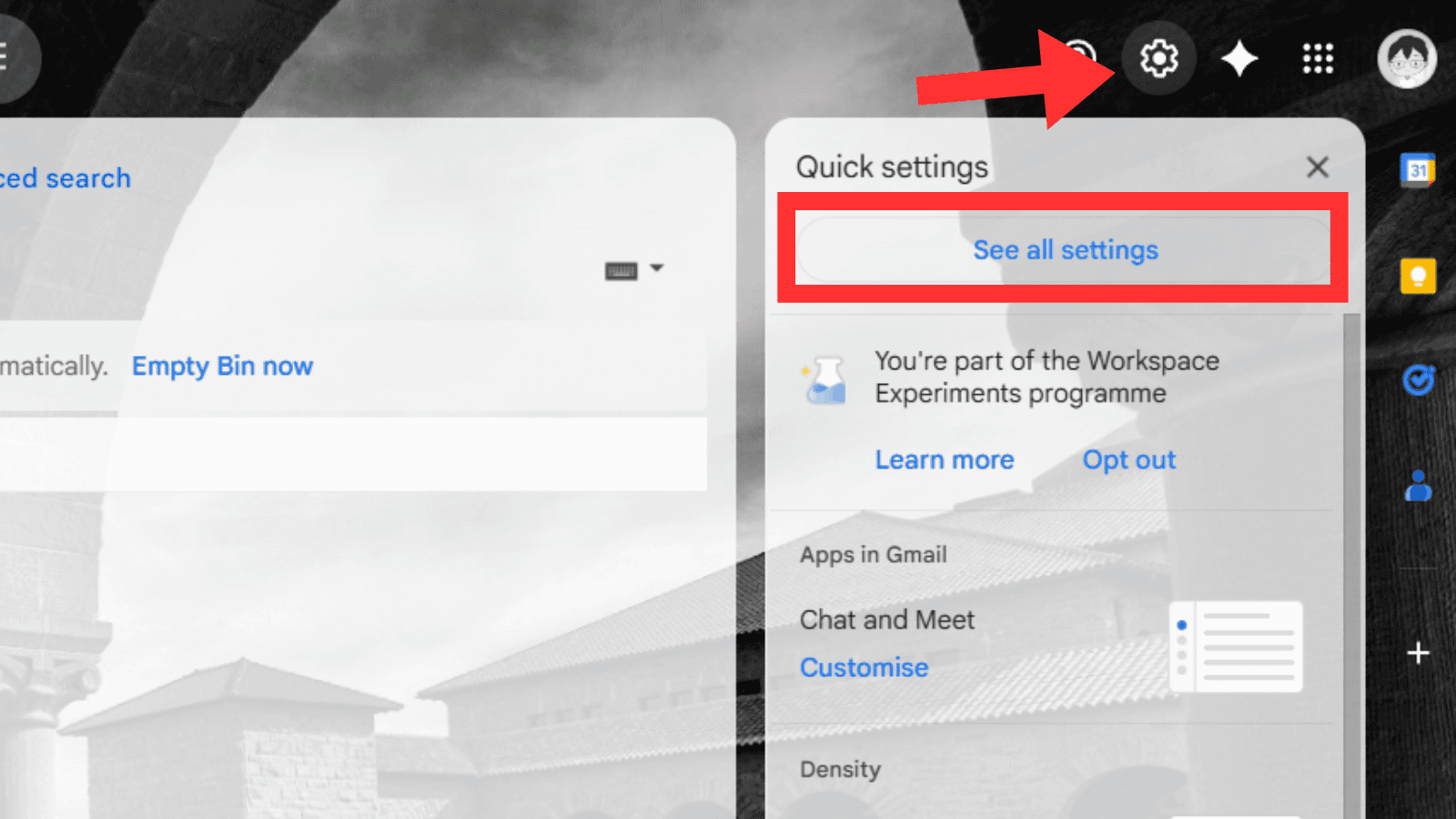
Open Gmail settings
Open Gmail on desktop, click the Settings gear, then choose See all settings.
Gmail
Step 2
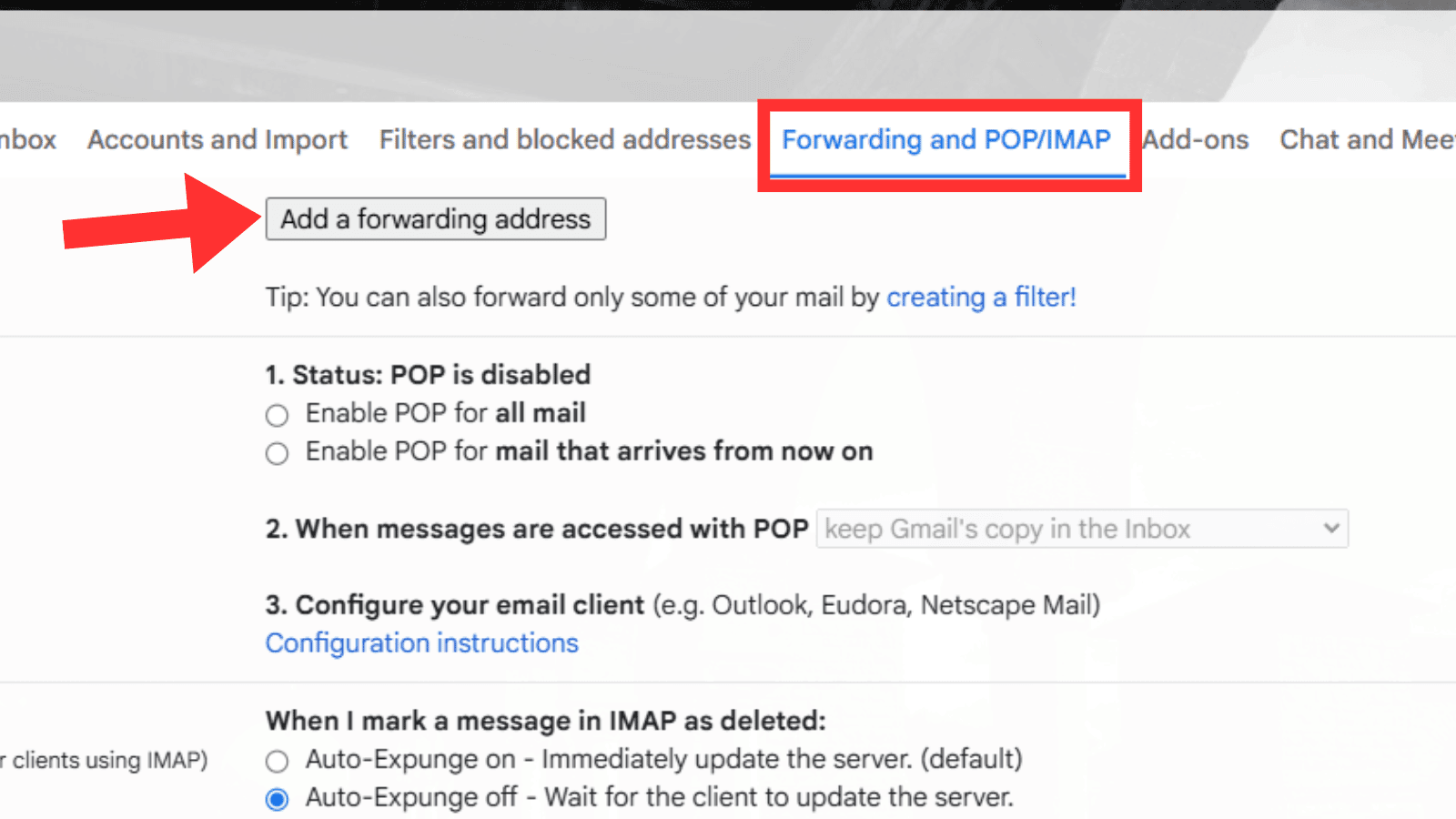
Add a forwarding address
Go to Forwarding and POP/IMAP, then click Add a forwarding address.
Gmail
Step 3
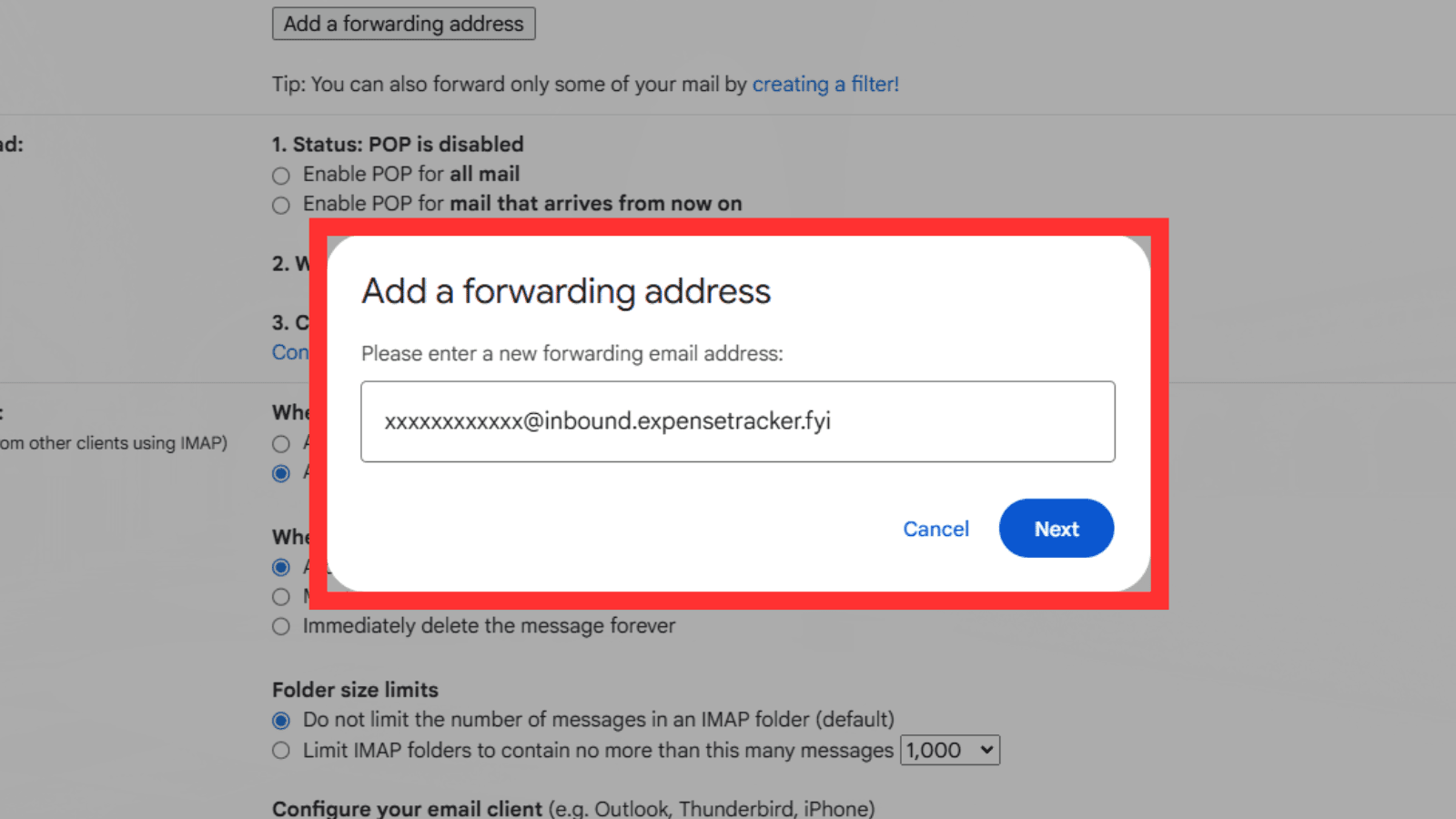
Paste your TeleExpense alias
Paste the forwarding email generated by the Telegram bot, then confirm and proceed.
Gmail
Step 4
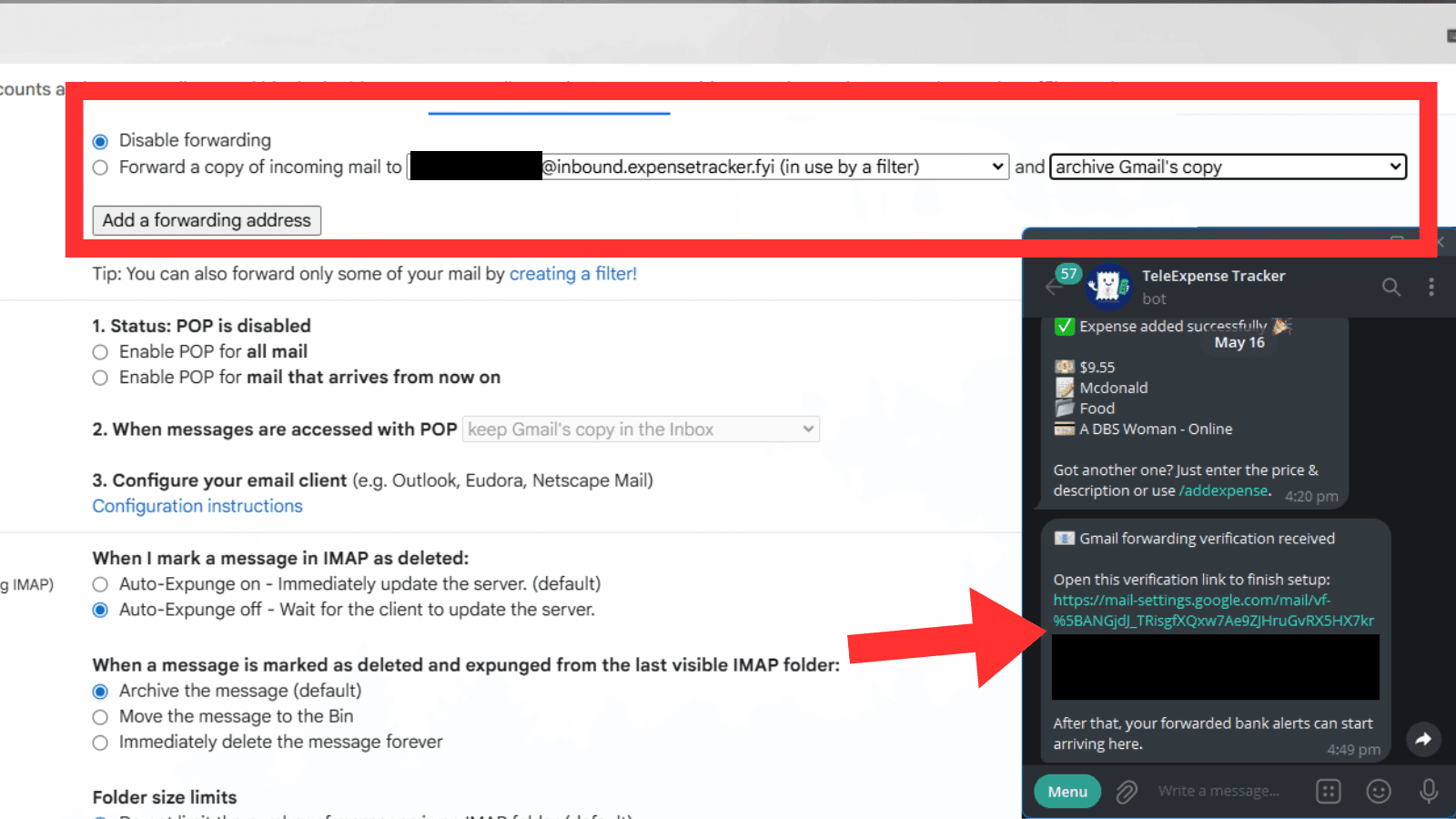
Approve it from Telegram
The Telegram bot will send you the verification message. Click the approval link to verify the forwarding address.
Telegram
Choose your route
After verification, continue with the setup style you prefer.
Step 5
Generate the Gmail filters automatically.
Select the banks you want to include, then click the button to download an XML file with the Gmail filters pre-configured. You can import this XML file directly into Gmail without having to create each filter by hand.
What the filter will do
Forward only matching transaction-alert emails (card/paylah spending).
Apply the expensetracker label.
Archive them and mark them as read.
Generate Gmail filter XML
Banks without complete email rules stay visible, but cannot be selected for export.
Use the same alias you verified in Steps 1 to 4.
Banks to include
Step 6
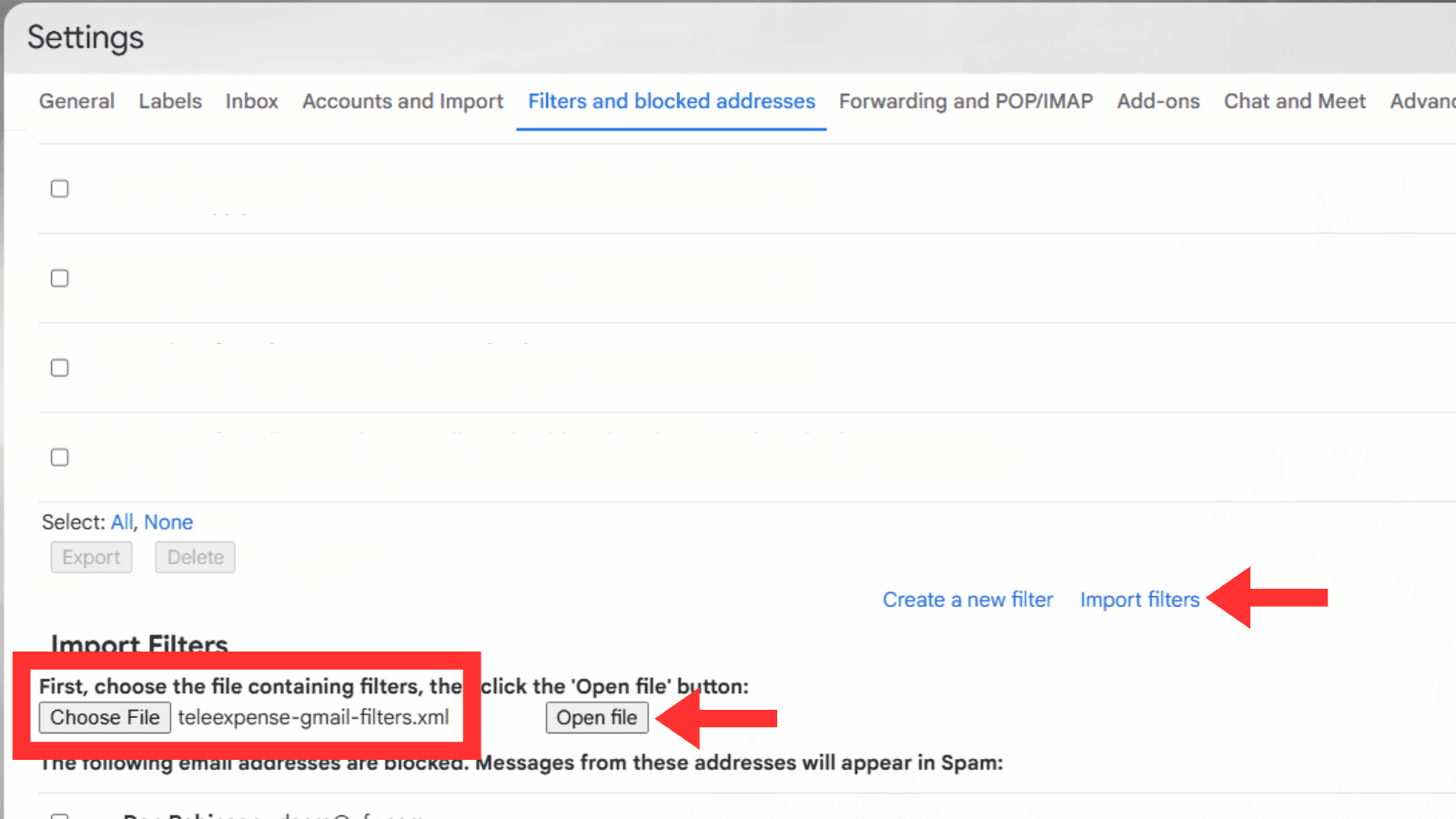
Import the generated filters into Gmail
Go to Gmail Settings > Filters and Blocked Addresses > Import filters, upload the XML file you downloaded, and click on Open file.
Gmail
Step 7
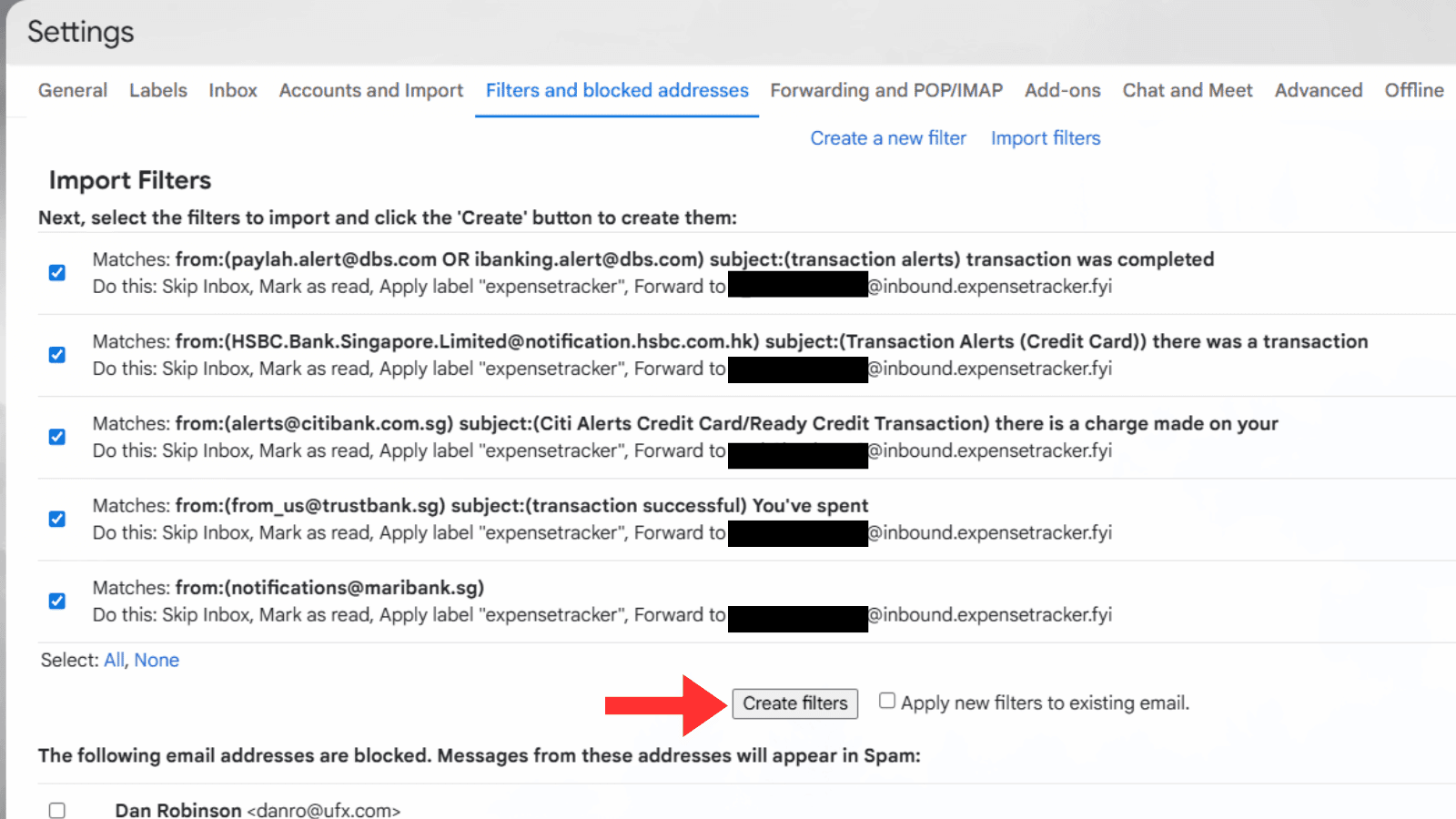
Validate the filters are correct and create them
Make sure the filters are configured to forward only the relevant transaction-alert emails, apply the expensetracker label, skip the inbox, and mark as read. Then proceed to create the filters.
Gmail
✓
Step 8
Setup complete.
Your Gmail forwarding rule is active. TeleExpense can now receive your transaction alerts and log them automatically.
- • Transaction-alert emails are forwarded to TeleExpense automatically.
- • Forwarded transactions are automatically logged to your expense tracker.
- • You spend less time entering expenses by hand.